
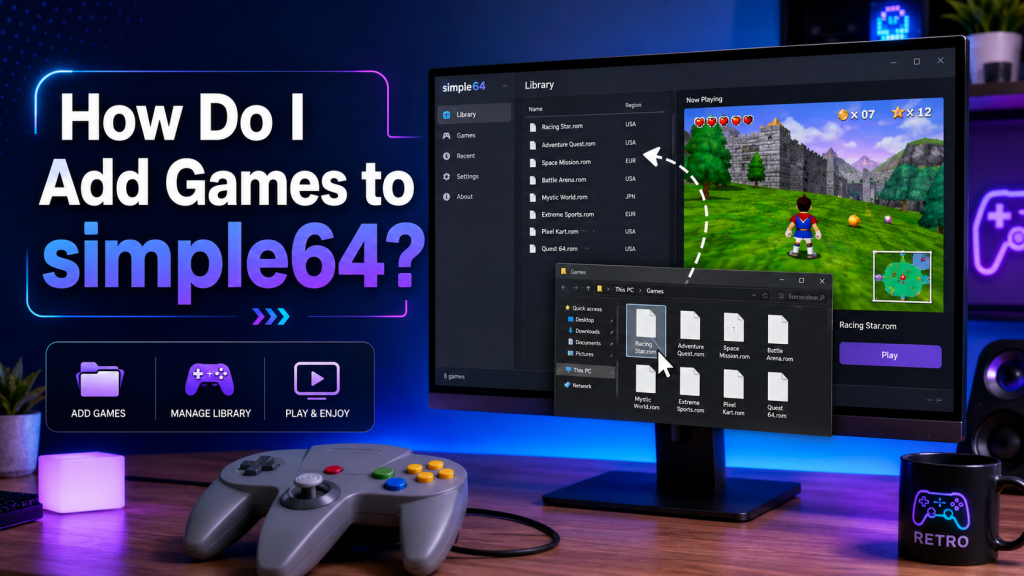
If you have installed simple64 and now want to play your favorite Nintendo 64 titles, the next step is learning how to add games to simple64 properly. The process is not difficult, but beginners can sometimes get confused about ROM files, folders, file formats, and loading games inside the emulator.
In this guide, you will learn how to add games to simple64 step by step, how to organize your game files, which file types usually work, and what to do if a game does not appear or does not open correctly. This article is written in a simple and user-friendly way, so even if you are new to emulators, you can follow it easily.
Read More: Does simple64 Work on Linux?
What Is simple64?
simple64 is a Nintendo 64 emulator that lets users play N64 games on a computer. It is designed to provide accurate emulation, smooth gameplay, controller support, save states, and a simple interface for loading classic Nintendo 64 games.
Before adding games, it is important to understand one thing: simple64 does not come with games included. You need to have your own Nintendo 64 game files, usually called ROMs. For legal and safe use, only use ROM files from games you personally own.
What You Need Before Adding Games to simple64
Before you start, make sure you have these basic things ready:
- simple64 installed on your computer
- A Nintendo 64 game ROM file
- A folder where you can safely store your games
- Enough storage space on your device
- A controller or keyboard setup for playing
Most Nintendo 64 ROM files are small compared to modern games, so you do not need a large amount of storage. However, keeping your files organized will make the emulator much easier to use.
Supported Game File Types in simple64
simple64 can usually load common Nintendo 64 ROM formats. These may include:
| File Format | Description |
|---|---|
| .z64 | Common Nintendo 64 ROM format |
| .n64 | Another common N64 ROM format |
| .v64 | Byte-swapped N64 ROM format |
| .zip | Sometimes supported if the ROM is inside the archive |
For the best result, use clean and properly dumped ROM files. If a game does not load, the issue may be caused by a corrupted file, unsupported archive, wrong format, or incomplete download.
How to Add Games to simple64 Step by Step
Step 1: Create a Game Folder
The first thing you should do is create a dedicated folder for your Nintendo 64 games. This helps you keep all ROM files in one place.
For example, you can create a folder like this:
Windows:
Documents > simple64 Games
Linux:
Home > Games > simple64
Try not to place your game files in random locations like the Downloads folder, because files there can easily get deleted or moved by mistake.
Step 2: Move Your ROM Files into the Folder
After creating your game folder, move your Nintendo 64 ROM files into it. Make sure each file has the correct extension, such as .z64, .n64, or .v64.
A clean folder may look like this:
- Super Mario 64.z64
- Mario Kart 64.z64
- The Legend of Zelda Ocarina of Time.n64
- Star Fox 64.v64
You can also create subfolders if you have many games. For example:
- Racing Games
- Adventure Games
- Platform Games
- Multiplayer Games
This makes it easier to find the game you want later.
Step 3: Open simple64
Now open the simple64 emulator on your computer. If this is your first time launching it, you may want to check basic settings first, such as video, audio, and controller input.
You do not need to change advanced settings just to add games. Most users can load a game directly after opening the emulator.
Step 4: Load the Game File
To add or play a game in simple64, use the emulator’s file loading option. In most cases, you need to open the main menu and choose an option like:
File > Open ROM
Then browse to the folder where your Nintendo 64 game files are stored. Select the game file and open it.
Once selected, simple64 should start loading the game. If the ROM is valid and supported, the game screen should appear after a few seconds.
Step 5: Configure Controls
After the game loads, check your controls. You can use a keyboard, but a controller usually gives a better Nintendo 64-style experience.
If your controller does not work immediately, open the input or controller settings inside simple64 and map the buttons manually. Make sure important controls such as A, B, Start, Z, C-buttons, and analog stick are assigned correctly.
Step 6: Save Your Settings
After loading your game and setting up controls, save your configuration if the emulator gives you that option. This helps you avoid repeating the same setup every time you open simple64.
You can also test save states, fullscreen mode, audio settings, and display options to make the experience smoother.
How to Organize Games in simple64
Adding games is not only about loading a ROM file. Good organization also matters, especially if you have many titles.
Here are some useful tips:
Use Clear File Names
Rename files in a simple and readable way. Avoid confusing names with too many symbols, version numbers, or random characters.
Example:
Bad file name:sm64_final_us_v1_randomdump.z64
Better file name:Super Mario 64.z64
Keep Games in One Main Folder
Keeping all games in one main folder makes them easier to find when using the Open ROM option.
Avoid Moving Files Again and Again
If you move ROM files after loading them once, simple64 may not remember the old location. Keep your game folder in a permanent place.
Separate Tested and Untested Games
If you have many ROMs, create two folders:
- Working Games
- Untested Games
This helps you avoid opening broken or duplicate files again and again.
Why Is My Game Not Loading in simple64?
Sometimes a game may not open even after you follow the correct steps. Here are the most common reasons.
The ROM File Is Corrupted
A damaged or incomplete ROM file may fail to load. Try using a clean backup from your own legally owned game.
The File Format Is Not Supported
If the game is inside a compressed file, try extracting it first. Some emulators can open zipped ROMs, but extracted files usually work better.
The Game Is in the Wrong Folder
Make sure you are browsing the correct folder inside simple64. If the file is stored in Downloads but you are checking Documents, it will not appear.
The File Extension Is Hidden
On Windows, file extensions may be hidden by default. This can make it hard to know whether your file is really a ROM file. Enable file extensions in File Explorer to check the real format.
Your Emulator Version Has an Issue
If simple64 is not working correctly, try restarting it. You can also check whether you are using a stable version of the emulator.
Can I Drag and Drop Games into simple64?
In some emulator setups, drag and drop may work, but it depends on the version and operating system. The safer method is to use the built-in Open ROM option from the menu.
If drag and drop does not work, do not assume your game file is broken. Simply open simple64, choose the file loading option, and select the ROM manually.
Do I Need BIOS Files for simple64?
For normal Nintendo 64 game loading, simple64 generally does not require users to add a separate BIOS file. You mainly need the emulator and a valid N64 ROM file.
If a game is not loading, the problem is more likely related to the ROM file, file location, controller setup, or emulator configuration rather than a missing BIOS.
Is It Legal to Add Games to simple64?
Using an emulator is not the same as downloading games illegally. Emulators themselves are commonly used for preservation, testing, and playing legally owned games. However, downloading ROMs from unofficial websites can violate copyright laws.
To stay safe and responsible, only use game backups from cartridges you own. Avoid downloading copyrighted ROM files from random websites.
Best Settings After Adding Games to simple64
After your game loads successfully, you may want to adjust a few settings for better gameplay.
Video Settings
Use the default video settings first. If the game runs slowly or shows graphical glitches, then try changing resolution, fullscreen mode, or graphics options.
Audio Settings
If you hear crackling or delay, close other heavy programs running in the background. You can also restart the emulator and reload the game.
Controller Settings
A controller is highly recommended for Nintendo 64 games because many titles depend on analog movement and special button layouts.
Save States
Save states let you save progress at any moment. This is useful, but you should also use in-game saves when possible, because they are usually more stable.
Tips for a Better simple64 Gaming Experience
Here are some simple tips to make your experience smoother:
- Keep your ROM files organized
- Use only clean and legal game backups
- Update your graphics drivers
- Use a controller for better gameplay
- Avoid running too many programs while playing
- Test one game at a time
- Keep backup copies of important save files
- Use simple file names for easier browsing
Common Mistakes Beginners Make
Many new users face problems because of small mistakes. Avoid these common issues:
Using the Wrong File
Make sure the file you are opening is actually a Nintendo 64 ROM and not a text file, installer, or shortcut.
Keeping ROMs in Downloads
The Downloads folder can get messy. Move your games to a dedicated folder.
Expecting Games to Be Included
simple64 does not include games by default. You need your own ROM files.
Ignoring Controller Setup
Some games may start, but feel unplayable if controls are not mapped correctly.
Using Broken ROMs
Not every ROM file is clean or complete. A bad ROM can cause crashes, black screens, or loading errors.
Conclusion
Adding games to simple64 is a simple process once you understand the basic steps. You only need to keep your Nintendo 64 ROM files in a clean folder, open simple64, choose the game file, and start playing. For the best experience, make sure your ROM files are in a supported format, your controller is properly configured, and your game library is well organized. If a game does not load, check the file type, folder location, and ROM quality before changing advanced settings. With the right setup, simple64 makes it easy to enjoy classic N64 games on your computer.